Understanding image gradient
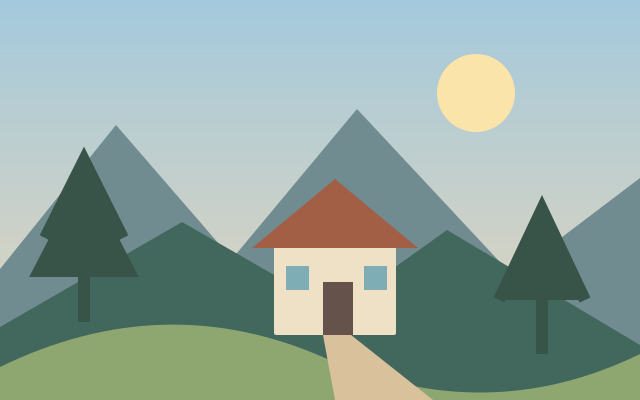
Extract a smooth color gradient that summarizes the colors across your image.
Choose the direction that follows the main color change. More stops retain more variation, while fewer stops create a simpler gradient.
A practical workflow
- Choose the required source files, if any. Files are handled as stated in the workspace privacy label.
- Set the available controls and apply the operation.
- Compare the actual output, check its dimensions and download the generated file.
Decisions and limitations
- Gradient direction
- Gradient stops
Colors are averaged in spatial bands with transparency considered. The gradient summarizes the image colors; it does not reproduce photographic detail. Up to 16 megapixels and 20 MB.
Questions about this task
Where do I use the current tool?
Extract an approximate color gradient from your image. Choose the direction and number of color stops, then save a gradient image or CSS.
What should I check for image gradient?
Choose the direction that follows the main color change. More stops retain more variation, while fewer stops create a simpler gradient.
Which settings and formats are confirmed?
PNG + SVG + CSS. Colors are averaged in spatial bands with transparency considered. The gradient summarizes the image colors; it does not reproduce photographic detail. Up to 16 megapixels and 20 MB.