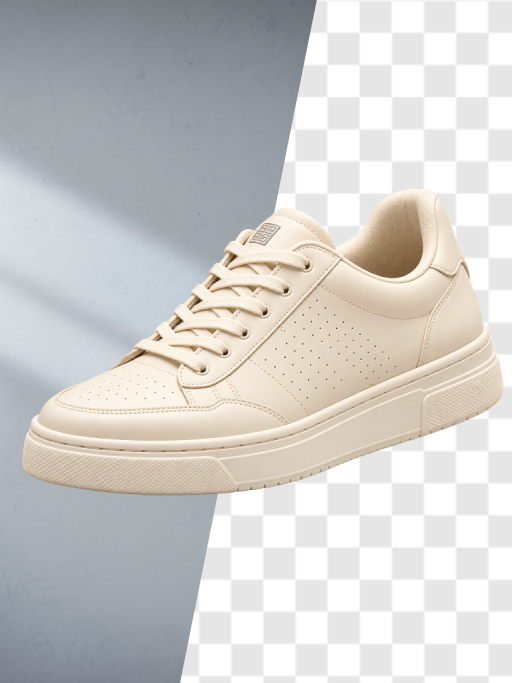
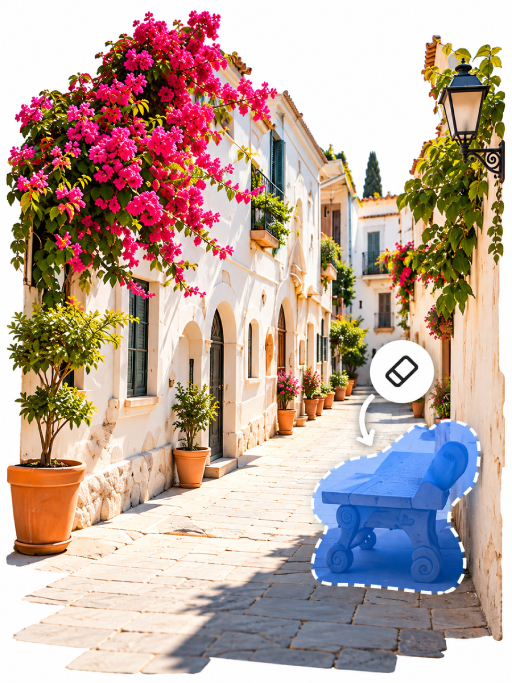
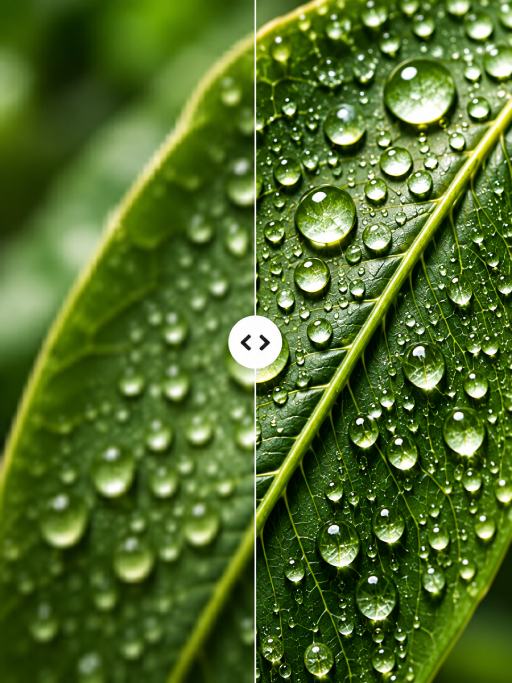
Explore options
See several directions around one strong concept.
One idea. Many possibilities.
Explore new compositions, moods, and details from a visual direction you already like.
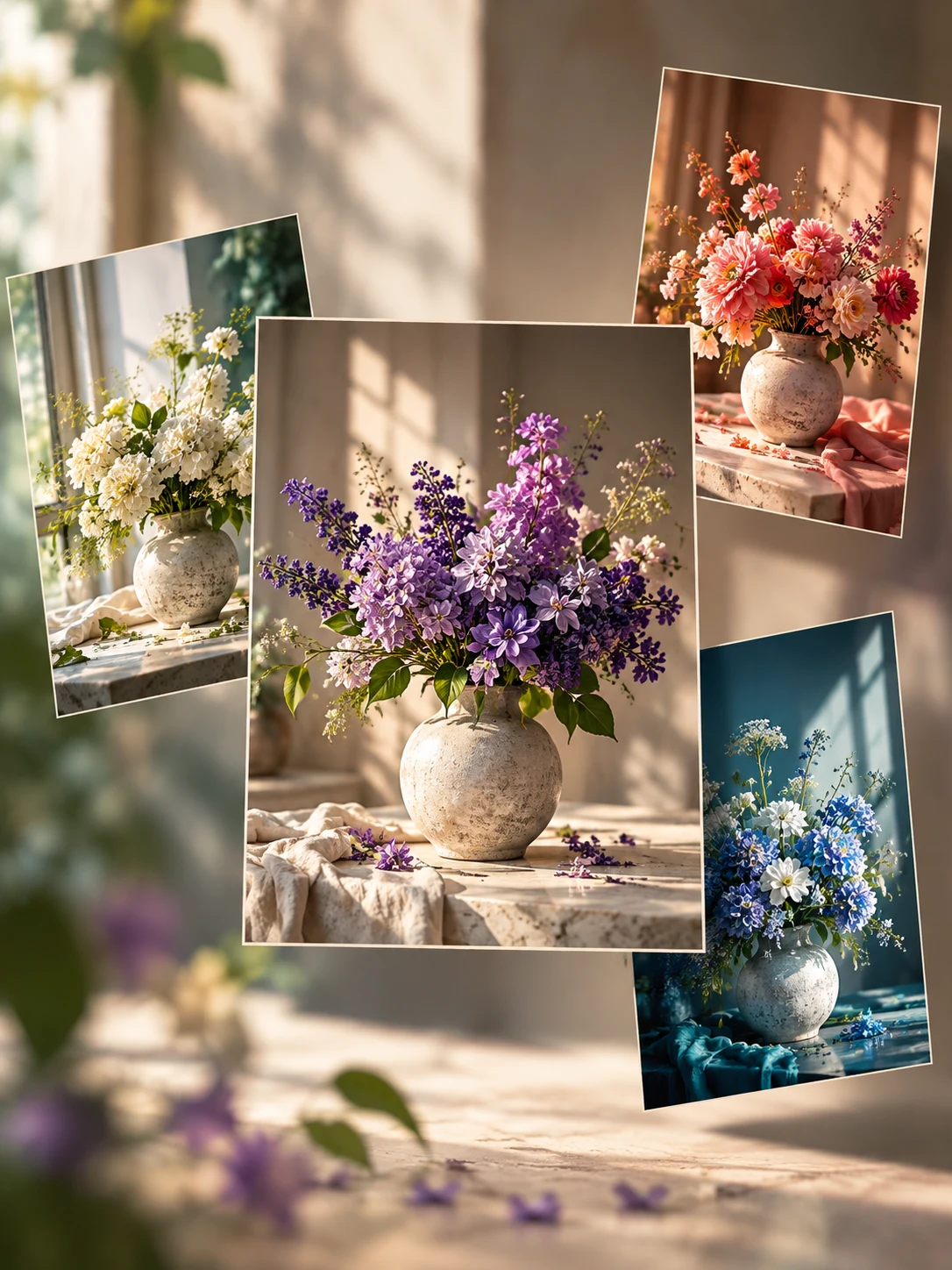
The idea
You do not have to start from a blank canvas every time. Create variations to see how a change in color, crop, lighting, or detail can shift the whole image.
What you can do
See several directions around one strong concept.
Preserve the subject and feeling while trying new details.
Compare candidates side by side before moving ahead.
How it works
Choose a visual with a direction you want to explore.
Focus on composition, color, lighting, or another detail.
Select the strongest variation and keep developing it.
Made for your ideas
Good to know
Keep exploring
Reference image variation explores alternative compositions while retaining a starting visual idea.
Name what must stay constant, such as the subject or palette, and change one visual variable at a time.
New AI tools require a real model integration before use. Existing studio integrations require sign in and a configured provider. Reference images may be sent to an external processing service; review the privacy policy before submitting sensitive material.
Use the existing workspace on this page or follow its link to the current Photolisa workflow. This guide does not add new processing capabilities.
Name what must stay constant, such as the subject or palette, and change one visual variable at a time.
The current workspace determines the available inputs and settings. The guide describes concepts to review and does not expand the formats accepted by the existing tool.
Describe a scene in words to plan an original image, including its subject, lighting and composition.
Existing toolPhoto restoration addresses fading, scratches and damaged areas in an old scan.
Existing toolAI upscaling estimates extra pixels to produce a larger image from a smaller source.
Existing toolColorization interprets likely colors in a monochrome photograph.
Existing toolSketch interpretation develops a drawing into a more detailed visual.
Existing toolAutomatic face blurring seeks faces and obscures their identifying detail.
In development