Bring back visibility
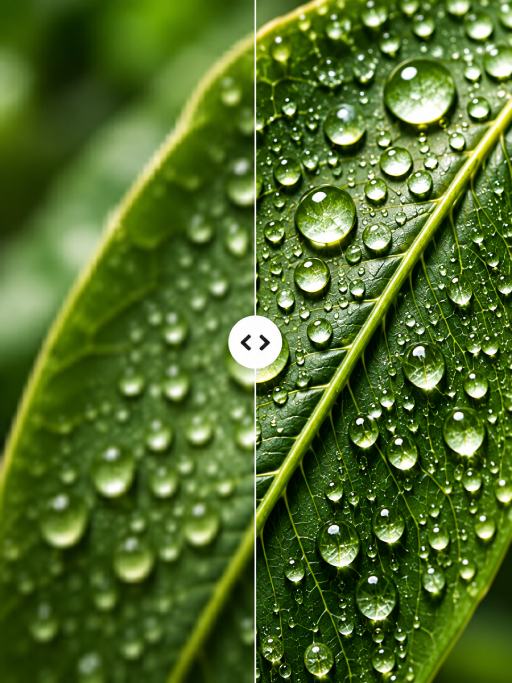
Improve faded contrast and distracting damage.
Give memories another moment
Refresh worn or faded photos while keeping the people and stories in them at the center.
The idea
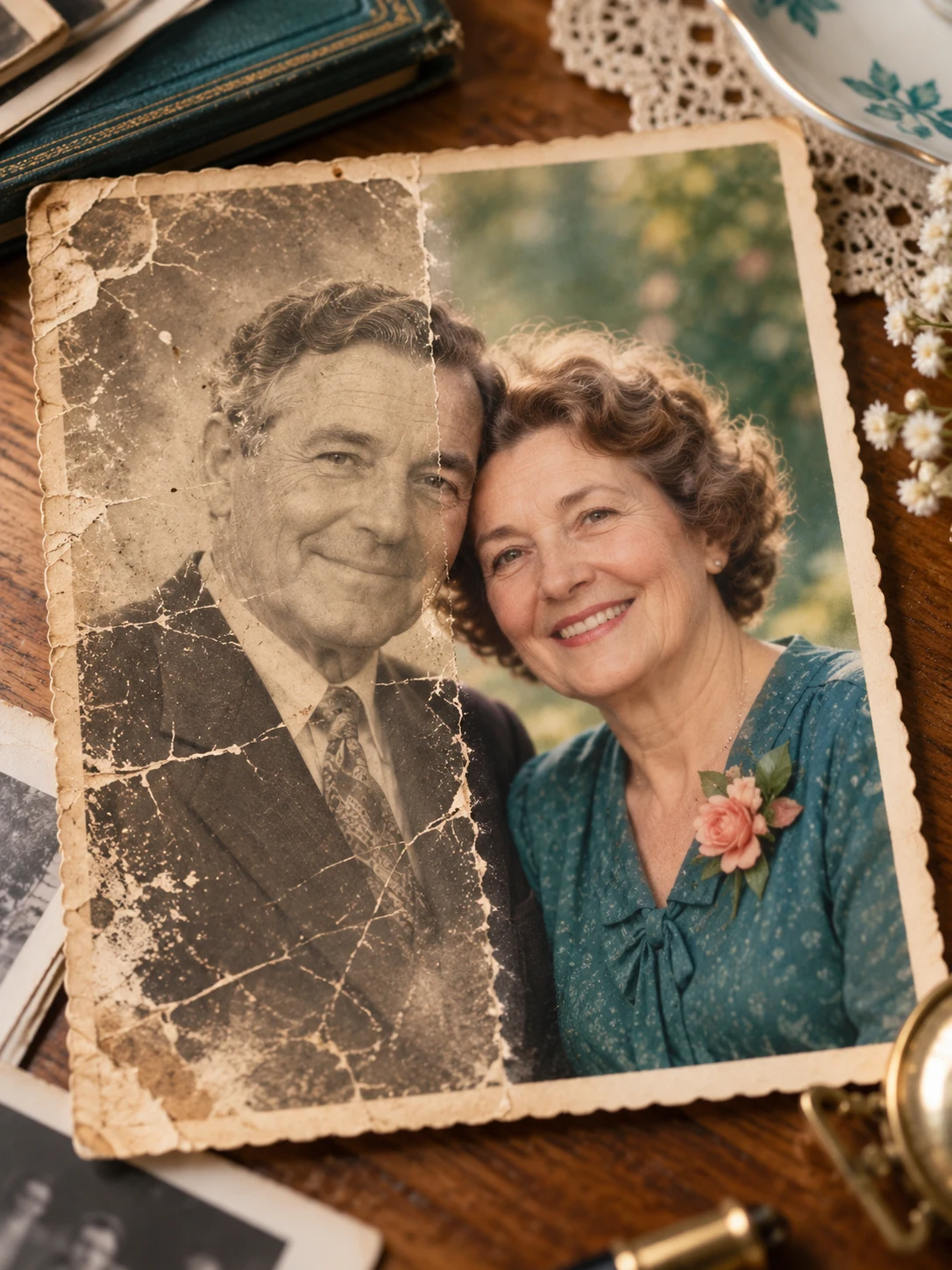
Older photos carry detail that matters. A careful restoration can make faces and moments easier to see while respecting the character of the original.
What you can do
Improve faded contrast and distracting damage.
Keep your source scan and work from a copy.
Prepare family photos for albums, displays, and stories.
How it works
Use the clearest version you have.
Review scratches, fading, and image detail.
Keep the original alongside the restored copy.
Made for your ideas
Good to know
Keep exploring
Photo restoration addresses fading, scratches and damaged areas in an old scan.
Scan the original at a useful resolution. Generated facial details may be plausible rather than historically accurate.
New AI tools require a real model integration before use. Existing studio integrations require sign in and a configured provider. Reference images may be sent to an external processing service; review the privacy policy before submitting sensitive material.
Use the existing workspace on this page or follow its link to the current Photolisa workflow. This guide does not add new processing capabilities.
Scan the original at a useful resolution. Generated facial details may be plausible rather than historically accurate.
The current workspace determines the available inputs and settings. The guide describes concepts to review and does not expand the formats accepted by the existing tool.
Describe a scene in words to plan an original image, including its subject, lighting and composition.
Existing toolAI upscaling estimates extra pixels to produce a larger image from a smaller source.
Existing toolColorization interprets likely colors in a monochrome photograph.
Existing toolReference image variation explores alternative compositions while retaining a starting visual idea.
Existing toolSketch interpretation develops a drawing into a more detailed visual.
Existing toolAutomatic face blurring seeks faces and obscures their identifying detail.
In development